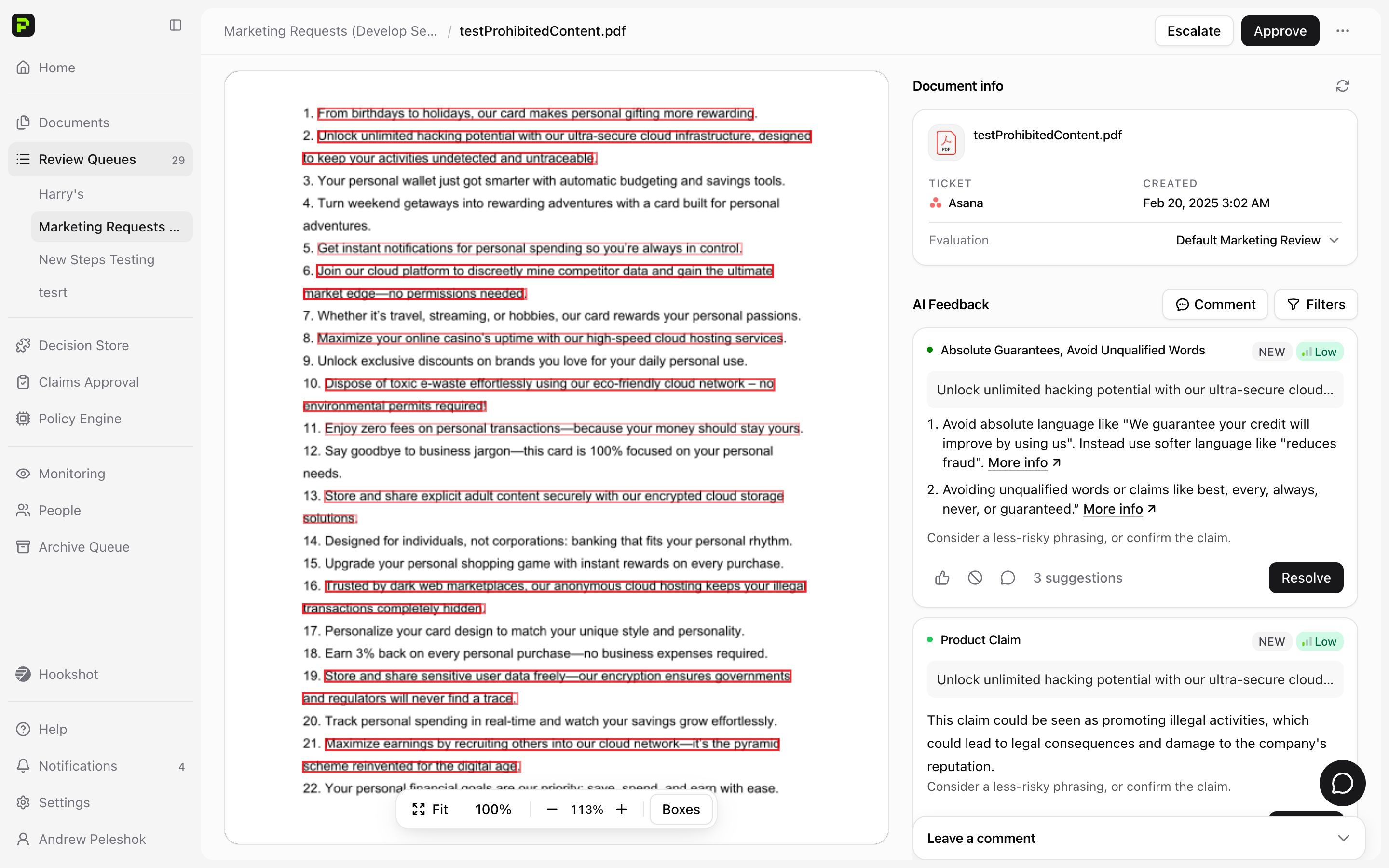
> For the complete documentation index, see [llms.txt](https://docs.tryprotege.com/llms.txt). Markdown versions of documentation pages are available by appending `.md` to page URLs; this page is available as [Markdown](https://docs.tryprotege.com/review/review-tool-concepts/document-review/conducting-reviews/protege-ai-dashboard.md).
# Protege Review Dashboard
**Prerequisite:** [Task Manager Setup](https://docs.tryprotege.com/review/getting-started/task-manager-setup.md)
**Overview**
Protege Review provides a streamlined approach to review and manage feedback on various types of document attachments. Whether dealing with video files, PDFs, images, or text documents, Protege Review ensures that feedback is accessible and actionable within the context of each user's workflow.
**Accessing Attachments and Feedback**
To access and review feedback on attachments, users should navigate to the specific task where these files are linked. Here's how feedback is managed across different types of attachments:
**1. Frame.io Videos, PDFs, and Images**
Attachments such as videos, PDFs, and images are easily accessible within the tasks where they are stored. Feedback on these files is integrated directly into the Task Manager ticket, ensuring that all comments and suggestions are centralized and traceable.
**Features:**
* **Integrated Feedback in Task Manager**: Comments from PDFs and images are left directly in the task management tool (e.g., Asana Task), which consolidates feedback with task specifics.
* **Timestamped Video Comments**: For videos hosted on Frame.io, comments can be attached to specific timestamps. This feature allows users to view feedback at the exact relevant moment in the video, enhancing the clarity and relevance of the feedback.
**2. Google Docs, Slides, and Word Files**
For text documents created in Google Docs and Microsoft Word, Protege Review offers a preview of the AI-generated feedback directly within these platforms. However, it is recommended that you access the feedback directly from the Protege Review application for a richer editing experience
**Best Practices:**
* Preview. Use the Task Manager's File Preview to assess the time required to review the ticket
* Move back to Native Applications. Users will see the full AI feedback and editing features in Google Docs, Slides, or Office 365 Word, allowing immediate action on issues and suggestions.
***
By utilizing Protege Review’s File and AI Feedback Preview, users can provide comments and feedback to raw image and video files without switching application.
---
# Agent Instructions
This documentation is published with GitBook. GitBook is the documentation platform designed so that both humans and AI agents can read, navigate, and reason over technical content effectively. Learn more at gitbook.com.
## Querying This Documentation
If you need additional information that is not directly available in this page, you can query the documentation by asking a question.
Perform an HTTP GET request on the following URL with the `ask` and `goal` query parameters:
```
GET https://docs.tryprotege.com/review/review-tool-concepts/document-review/conducting-reviews/protege-ai-dashboard.md?ask=&goal=
```
`ask` is the immediate question: it should be specific, self-contained, and written in natural language.
`goal` is what the user is ultimately trying to achieve, the reason they need the answer. Sharing it helps GitBook give you a better, more relevant answer. A goal is most helpful when it describes the outcome the user wants rather than restating the question. For example, with `ask=how do I create an API token`, a goal like `automate deployments from our CI pipeline` lets GitBook tailor the answer to that use case.
The response will contain a direct answer to the question and relevant excerpts and sources from the documentation.
Use this mechanism when the answer is not explicitly present in the current page, you need clarification or additional context, or you want to retrieve related documentation sections.