> For the complete documentation index, see [llms.txt](https://docs.tryprotege.com/llms.txt). Markdown versions of documentation pages are available by appending `.md` to page URLs; this page is available as [Markdown](https://docs.tryprotege.com/review/getting-started/task-manager-setup/jira.md).
# Jira
If your team organizes review requests through Jira, you can link the Jira Project to appear in Protege Review's dashboard for task management.
1. **Access the Dashboard**: Log in to your Protege account via the dashboard at [app.tryprotege.com](https://app.tryprotege.com).
2. **Navigate to Settings**: Once logged in, navigate to the "Settings" section of the dashboard. This is located at the bottom of the navigation sidebar.
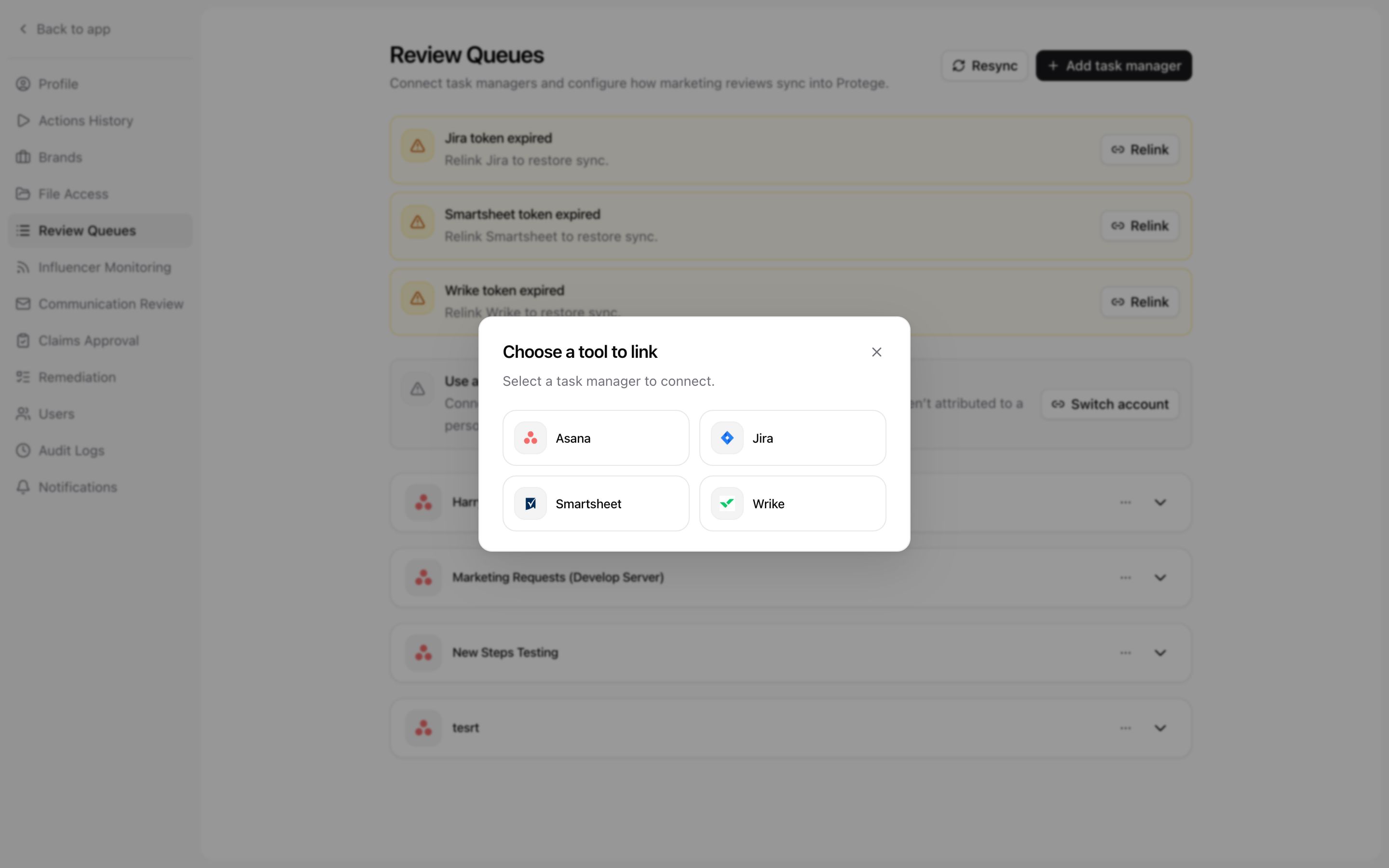
3. **Link Jira**: Within the Settings section, select **Review Queues**. On that page, click **Add task manager** to begin the process.
* It is recommended to create a Jira user under legal@\[your company name].com. Comments and feedback left through Protege Review will show up under this identity.
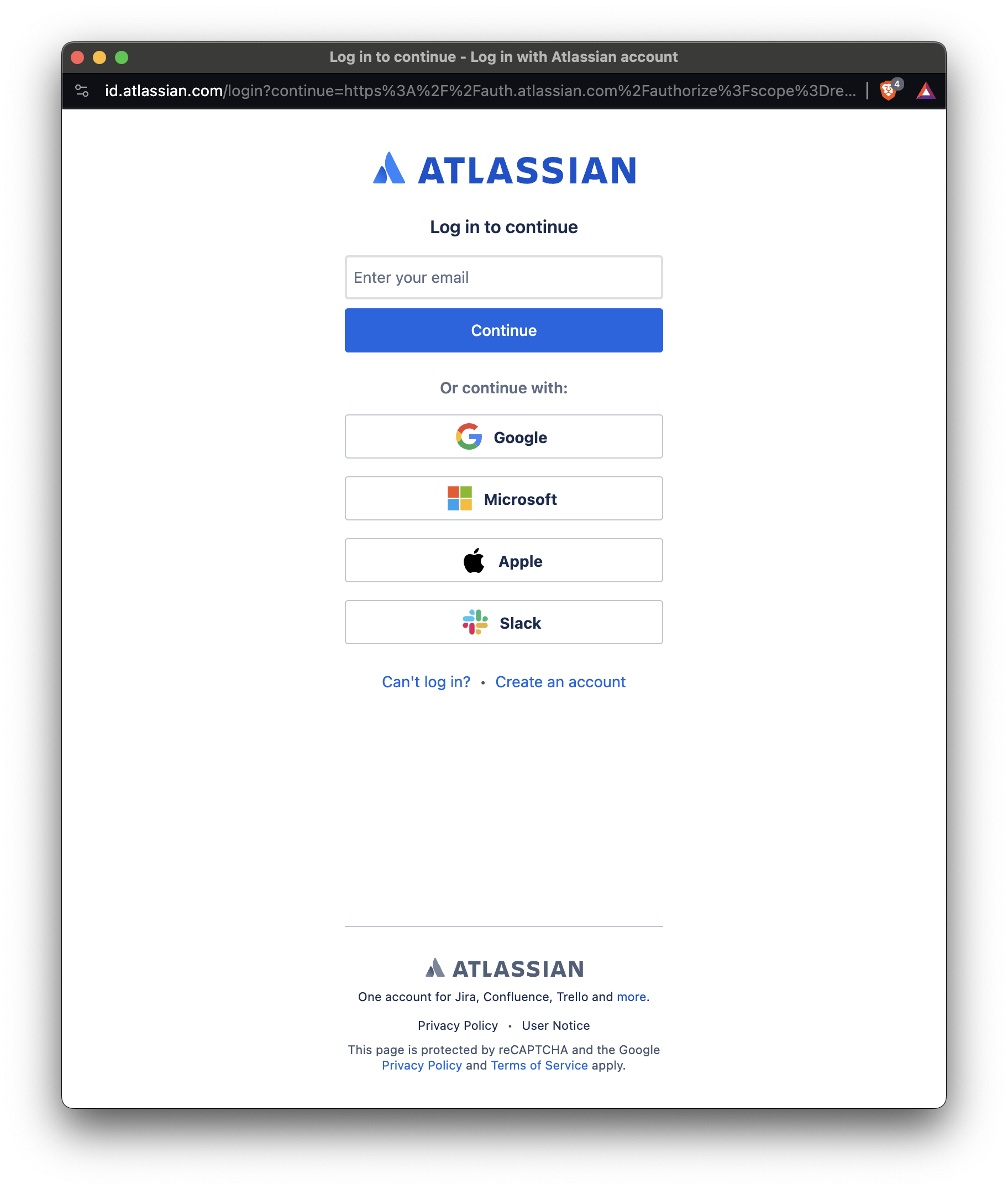
4. **Authorize Access**: You will be redirected to the Jira sign-in page. Enter your Jira account credentials to authorize Protege Review to access your Jira projects and boards.
5. **Grant Permissions**: After signing in, Jira will request permission for Protege Review to access your projects and boards. Review the permissions requested and grant access as necessary.
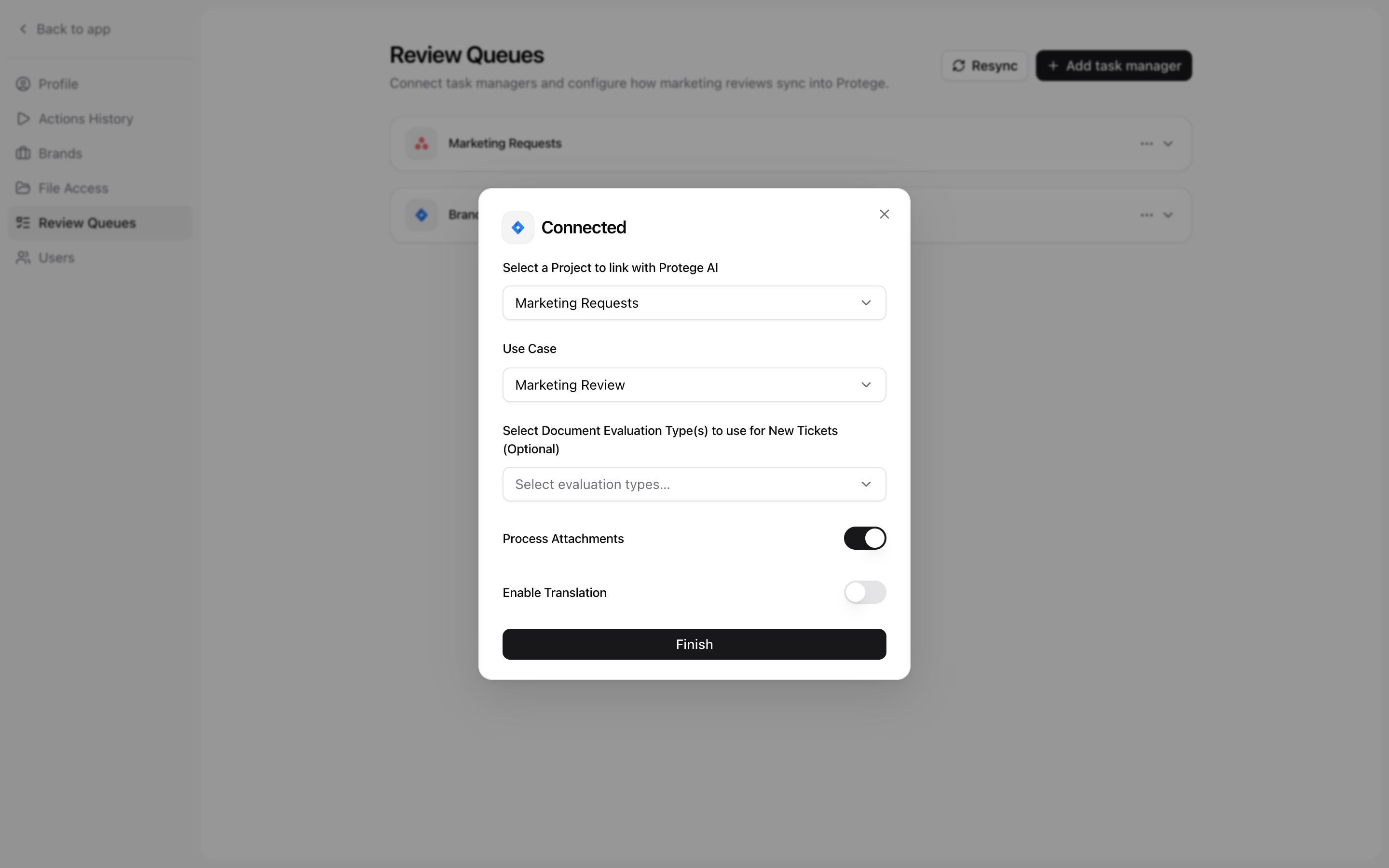
6. **Select Project Board**: Once authorized, you will be prompted to select the specific project board within Jira that you want to link to Protege Review.
7. **Confirmation**: After selecting the project board, you will receive confirmation that Jira has been successfully linked to your Protege Review account.
8. **Start Reviewing**: With Jira linked, you can now preview your tasks and files to review in Protege Review for efficient task management.
Note:
* If the user who linked the board leaves the company or no longer has access, the board will need to be relinked.
* If you encounter any issues during the installation process or require assistance, please reach out to our support team at . We're here to help ensure a smooth installation and seamless integration with your workflow.
\
---
# Agent Instructions
This documentation is published with GitBook. GitBook is the documentation platform designed so that both humans and AI agents can read, navigate, and reason over technical content effectively. Learn more at gitbook.com.
## Querying This Documentation
If you need additional information that is not directly available in this page, you can query the documentation dynamically by asking a question.
Perform an HTTP GET request on the current page URL with the `ask` query parameter, and the optional `goal` query parameter:
```
GET https://docs.tryprotege.com/review/getting-started/task-manager-setup/jira.md?ask=&goal=
```
`ask` is the immediate question: it should be specific, self-contained, and written in natural language.
`goal` is optional and describes the broader end goal you are ultimately trying to accomplish on behalf of the user. GitBook uses it to tailor the answer towards what is most useful for that goal.
The response will contain a direct answer to the question and relevant excerpts and sources from the documentation.
Use this mechanism when the answer is not explicitly present in the current page, you need clarification or additional context, or you want to retrieve related documentation sections.