> For the complete documentation index, see [llms.txt](https://docs.tryprotege.com/llms.txt). Markdown versions of documentation pages are available by appending `.md` to page URLs; this page is available as [Markdown](https://docs.tryprotege.com/review/enterprise-features/enterprise-sso/duo.md).
# Duo
**Overview**
This guide walks you through the process of configuring Duo Single Sign-On (SSO) using Security Assertion Markup Language (SAML). We will provide instructions for integrating Duo with a SAML Identity Provider (IdP). This documentation uses Azure Active Directory (Azure AD) as the example IdP, but the steps are similar for other providers like Okta, ADFS, and others.
**Step 1: Create SAML Source in Duo SSO**
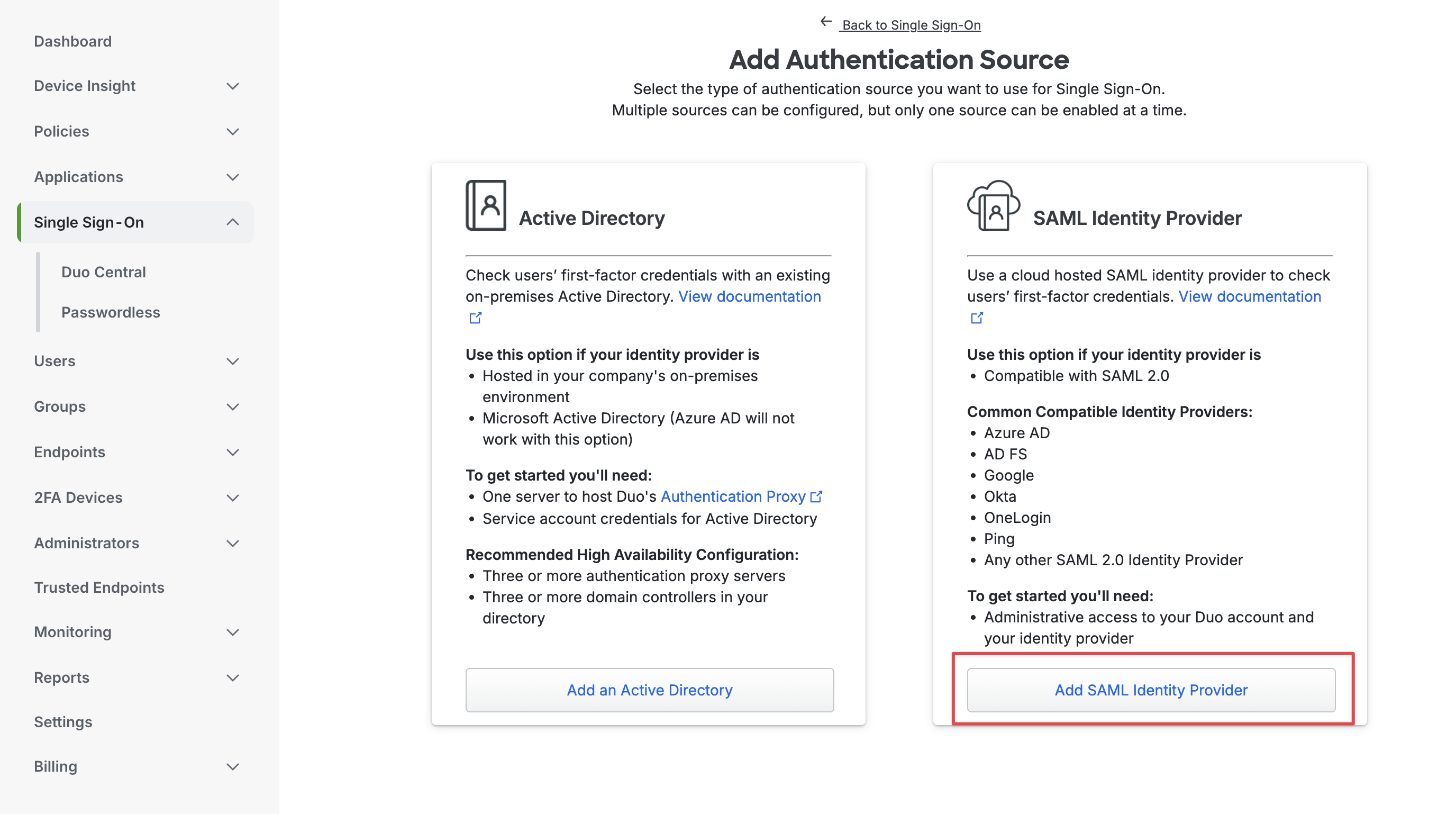
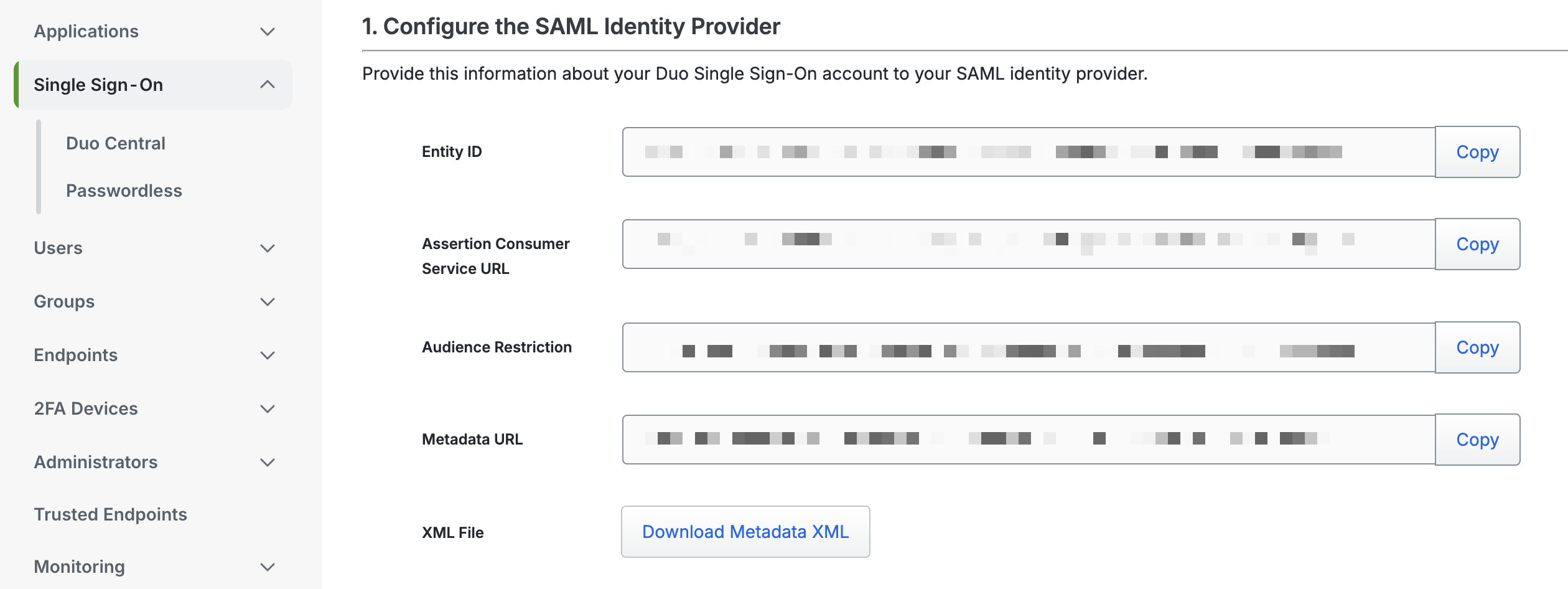
If you don't have a SAML source set up in Duo SSO yet, please create a new one and provide the following information with us to proceed with the configuration:
* **Entity ID**: The unique identifier used by your IdP to recognize the Duo application.
* **Assertion Consumer Service (ACS) URL**: The endpoint where your IdP sends the SAML authentication responses.
* **Audience Restriction**: The identifier for the service provider (Duo) that the IdP should match with the SAML response.
* **Metadata URL**: The URL where the IdP can retrieve Duo’s metadata to automatically configure the SSO connection.
Create new SSO SAML source
Duo SAML details
#### **Step 2: Create a SAML Application in Azure AD**
1. **Log in to Azure AD:**
* Sign in to the [Azure portal](https://portal.azure.com) using your administrator credentials.
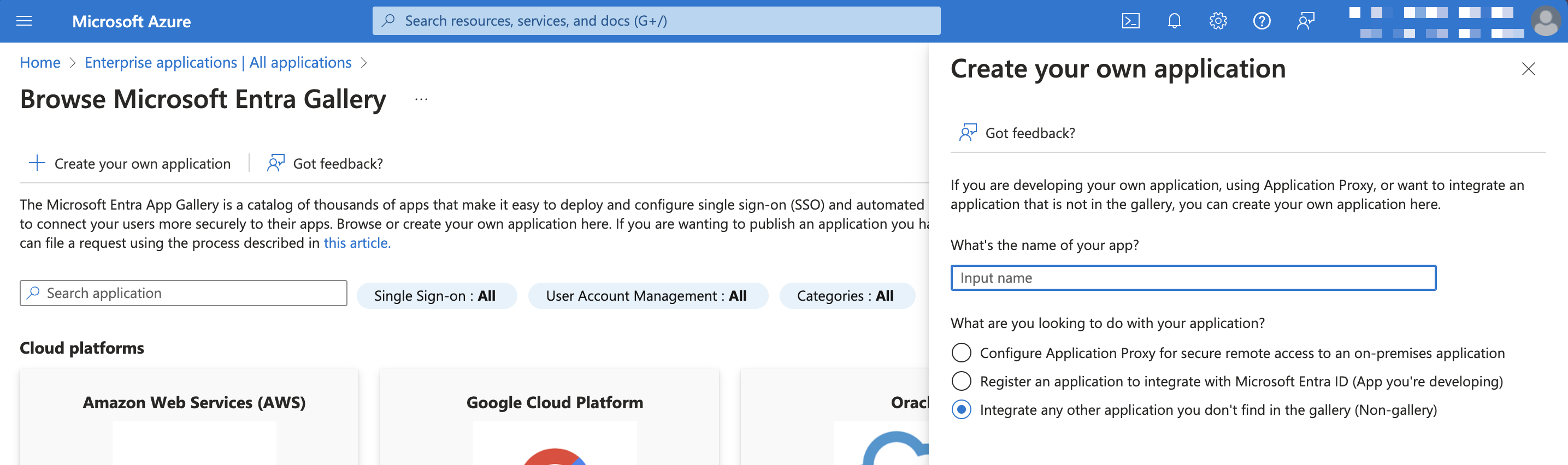
2. **Register a New Application:**
* Navigate to **Azure Active Directory > Enterprise applications**.
* Click on **New application**.
* Select **Create your own application**.
* Provide a name for the application and choose **Integrate any other application you don't find in the gallery (Non-gallery)**.
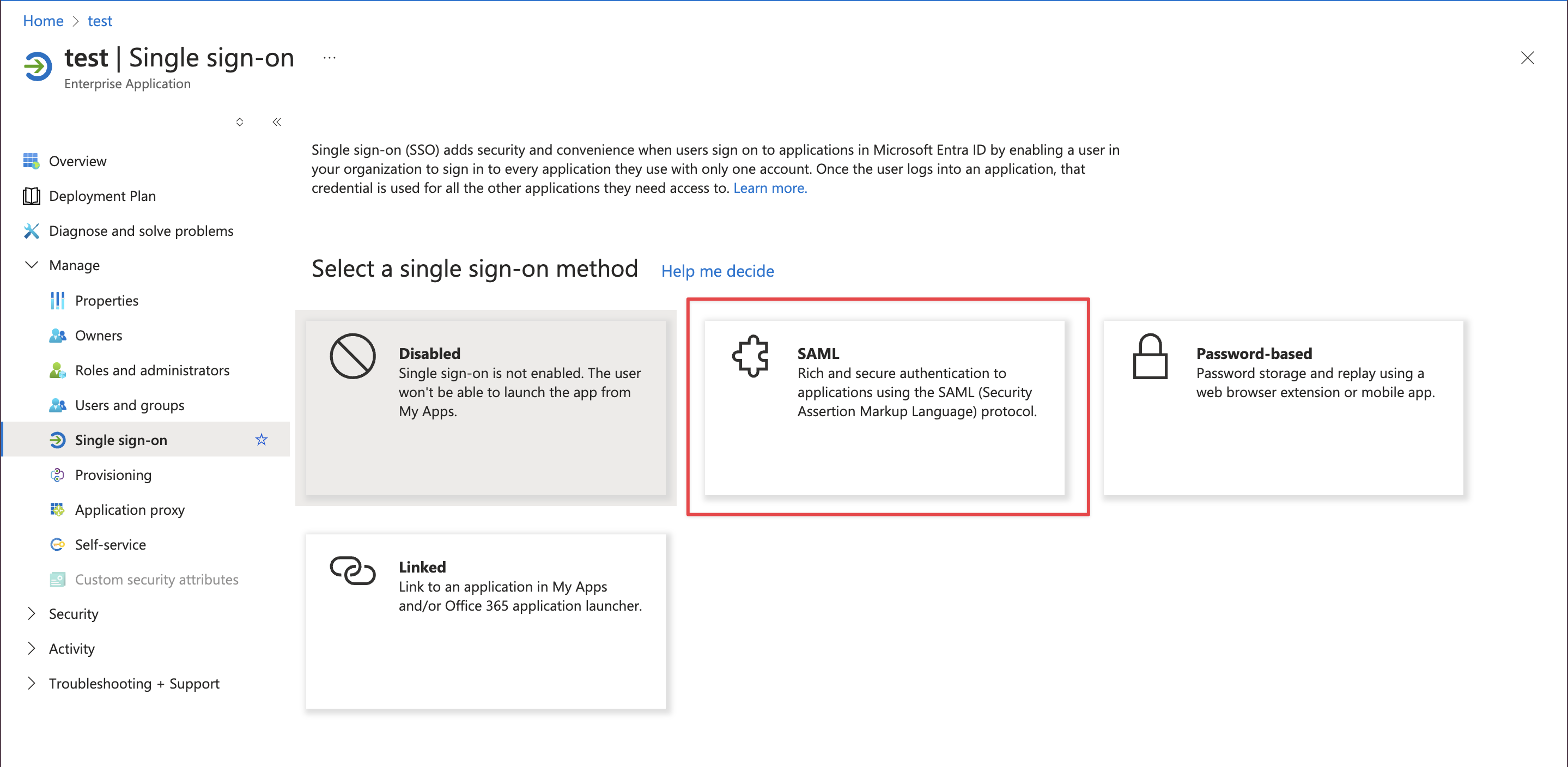
3. **Set Up SAML-based SSO:**
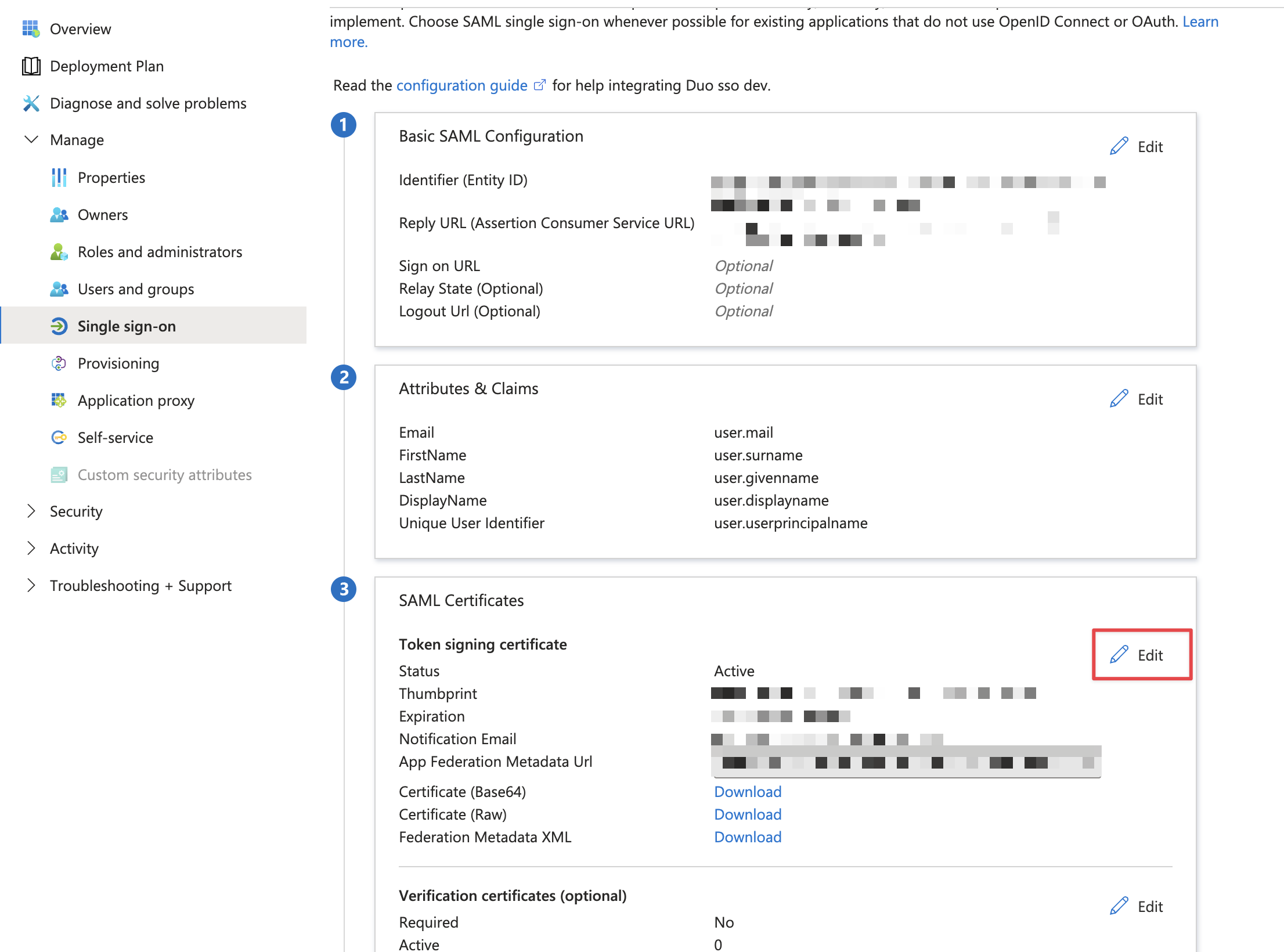
* Under the application’s settings, go to **Single sign-on**.
* Choose **SAML** as the single sign-on method.
4. **Basic SAML Configuration:**
* Fill in the following fields:
* **Identifier (Entity ID)**: Enter the **Entity ID** value from **Step 1**
* **Reply URL (Assertion Consumer Service URL)**: Enter the **Assertion Consumer Service (ACS) URL** from **Step 1**
* **Sign on URL**: Leave this blank unless Duo provides a specific value.
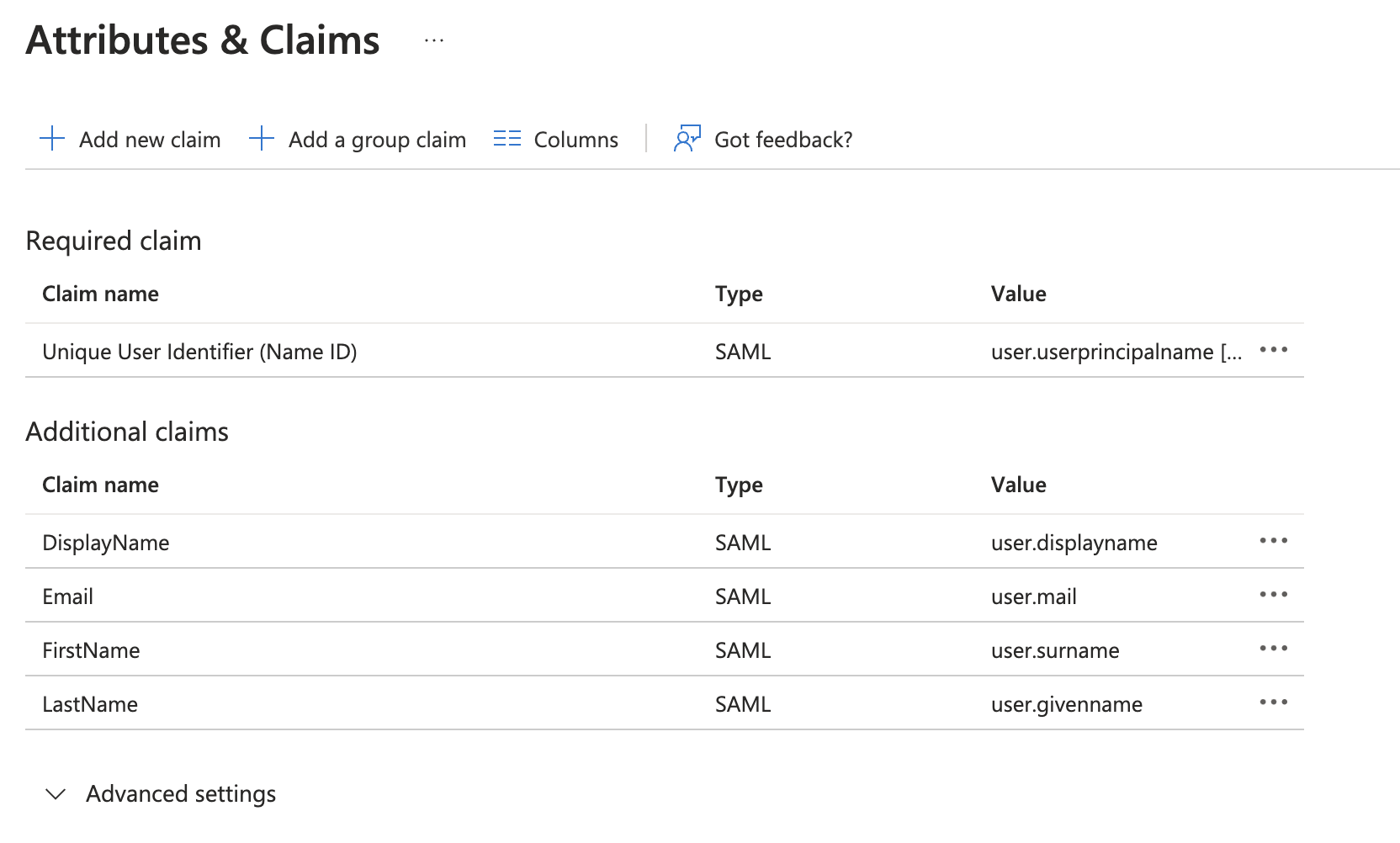
5. **User Attributes & Claims:**
* Ensure the required claims are set up. Typically, you should configure:
* **NameID**: Set this to the user’s email address or another unique identifier.
* **FirstName**: Given name of the user.
* **LastName**: Surname of the user.
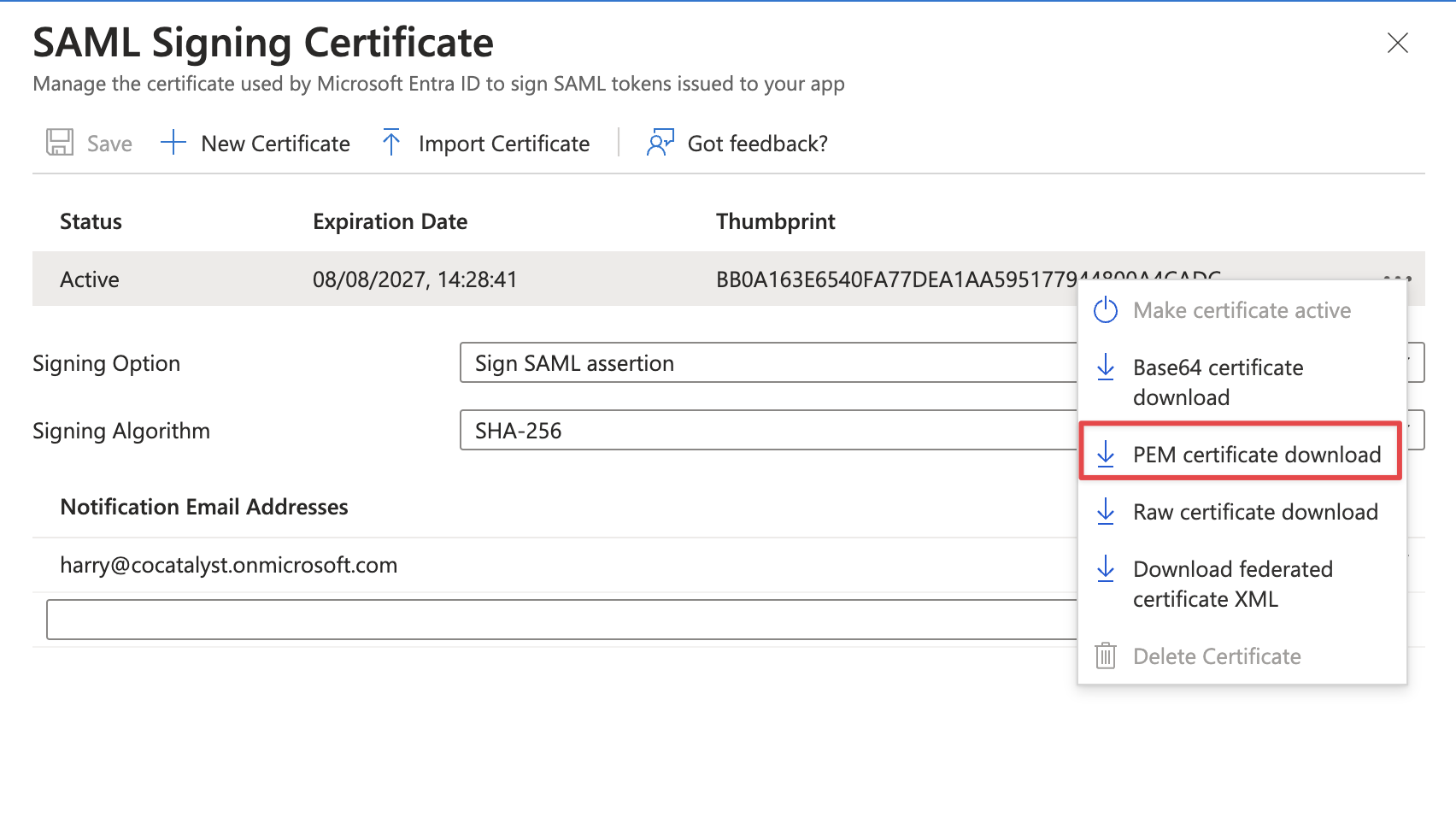
6. **SAML Signing Certificate:**
* Edit **Token signing certificate** then download the PEM certificate
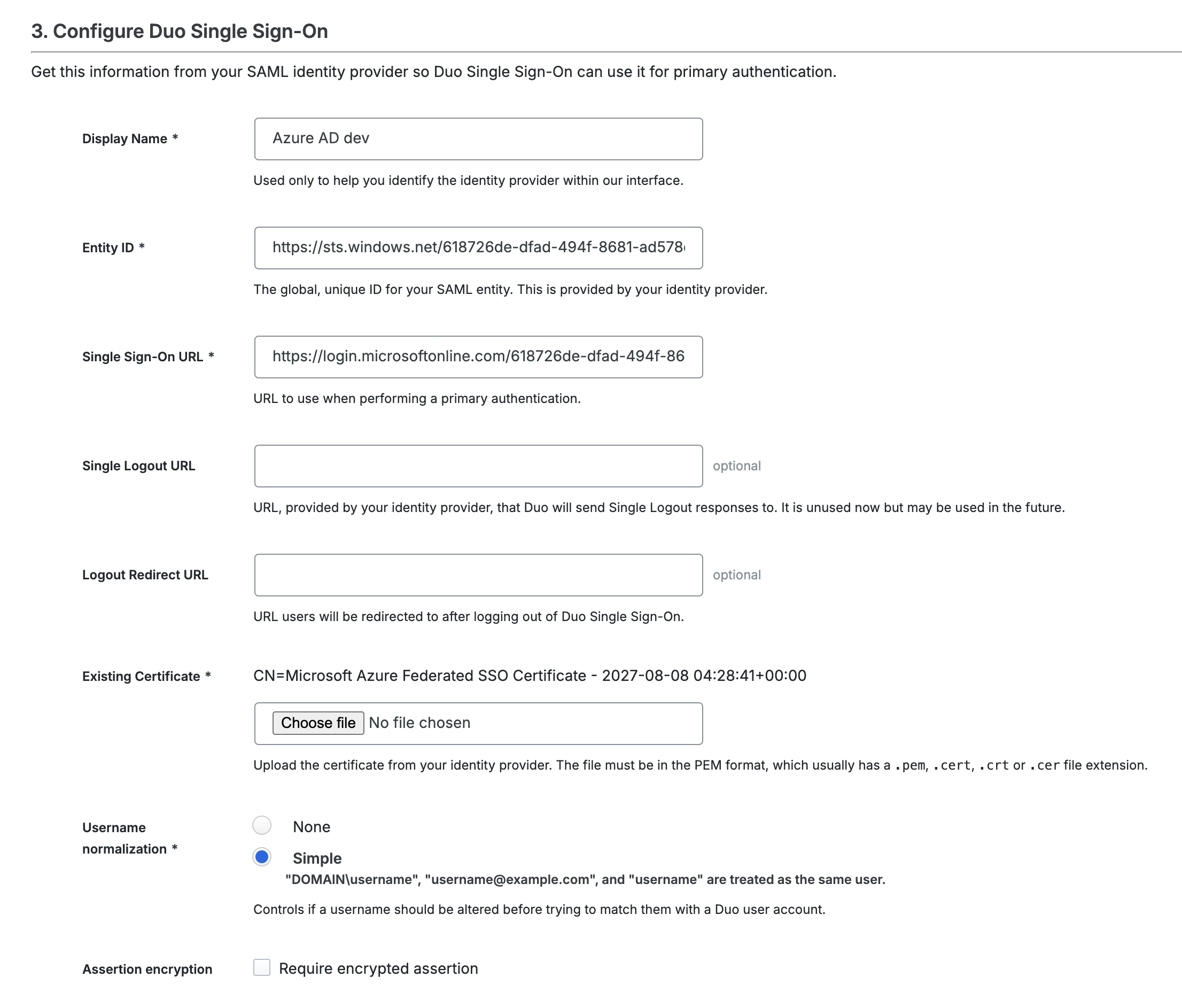
**Step 3: Configure Duo Single Sign-On**
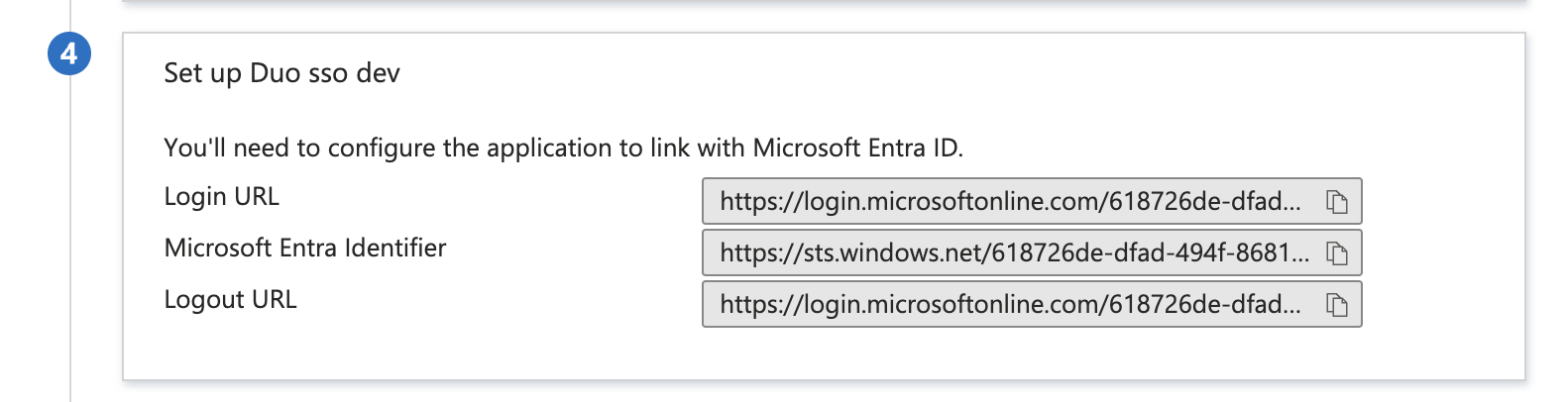
* Fill the following fields in Duo with the info from Azure
* **Entity ID:** Enter **Microsoft Entra Identifier** from Azure
* **Single Sign-On URL:** Enter **Login URL** from Azure
* **Single Logout URL:** Enter **Logout URL** from Azure
Azure SSO
Duo SSO
***Note:*** If you experience any issues during the linking process or have questions related to Single Sign-On (SSO) integration, please reach out to our support team at . We are available to assist you and ensure a seamless integration with your authentication system.
---
# Agent Instructions
This documentation is published with GitBook. GitBook is the documentation platform designed so that both humans and AI agents can read, navigate, and reason over technical content effectively. Learn more at gitbook.com.
## Querying This Documentation
If you need additional information that is not directly available in this page, you can query the documentation by asking a question.
Perform an HTTP GET request on the following URL with the `ask` and `goal` query parameters:
```
GET https://docs.tryprotege.com/review/enterprise-features/enterprise-sso/duo.md?ask=&goal=
```
`ask` is the immediate question: it should be specific, self-contained, and written in natural language.
`goal` is what the user is ultimately trying to achieve, the reason they need the answer. Sharing it helps GitBook give you a better, more relevant answer. A goal is most helpful when it describes the outcome the user wants rather than restating the question. For example, with `ask=how do I create an API token`, a goal like `automate deployments from our CI pipeline` lets GitBook tailor the answer to that use case.
The response will contain a direct answer to the question and relevant excerpts and sources from the documentation.
Use this mechanism when the answer is not explicitly present in the current page, you need clarification or additional context, or you want to retrieve related documentation sections.